How to set a virtual background in Google Meet
Add your own background in Google Meet on your computer or phone in a couple of minutes. Covers supported browsers, image specs, mirroring and common problems.
Make a Meet backdrop with your logo →Google Meet background image requirements
Recommended size
1920 × 1080 px
Aspect ratio
16:9
Formats
JPG, PNG
From Wallogo
1920 × 1080 JPG
A Wallogo backdrop fits without cropping. Your browser needs graphics acceleration turned on.
Computer (Chrome, Edge, Firefox, Safari)
Set your background before you join or during a call. No extension needed.
Open Google Meet
Go to meet.google.com or open a meeting link in your browser. You can set your background before you join or during the meeting.
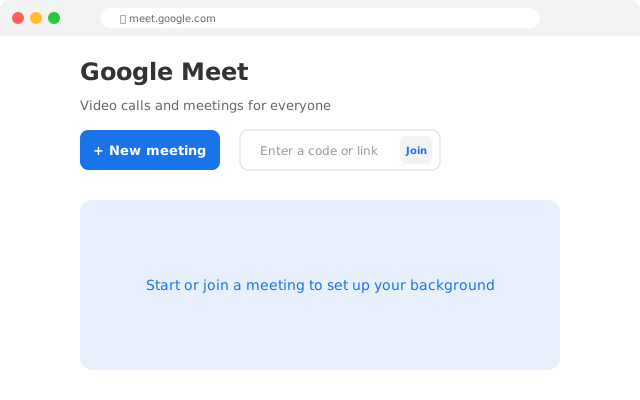
Tip: Chrome and Edge give the smoothest result. Recent Firefox and Safari (Mac) work too.
Open backgrounds and effects
Before joining: under your video preview, click Backgrounds and effects. During a meeting: click Video settings next to the microphone at the bottom, then Backgrounds and effects.
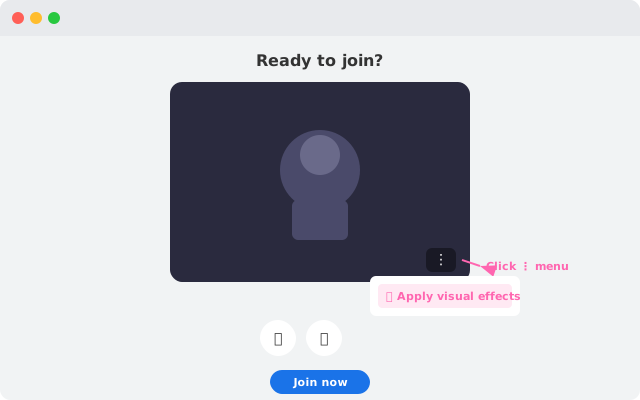
Tip: If you don't see the option, turn on graphics acceleration in your browser (in Chrome: Settings → System) and restart it.
Go to the Backgrounds tab
A panel opens with blur options and Google's own backgrounds. Open the Backgrounds tab.
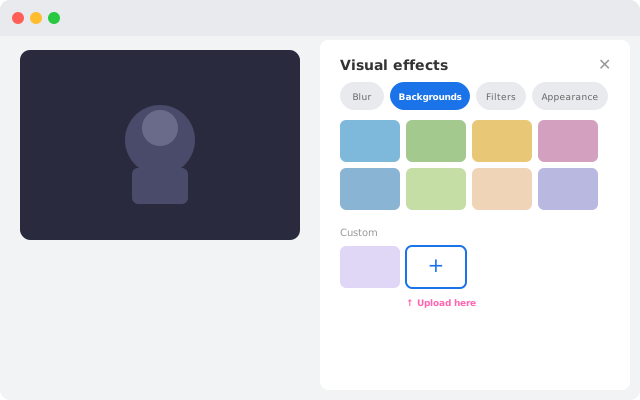
Tip: Slight blur is a quick fallback, but it still shows the shape of your room.
Add your own image
Under Blur and personal backgrounds, click Add your own personal background and pick your backdrop file (for a Wallogo backdrop, the 1920×1080 JPG you downloaded).
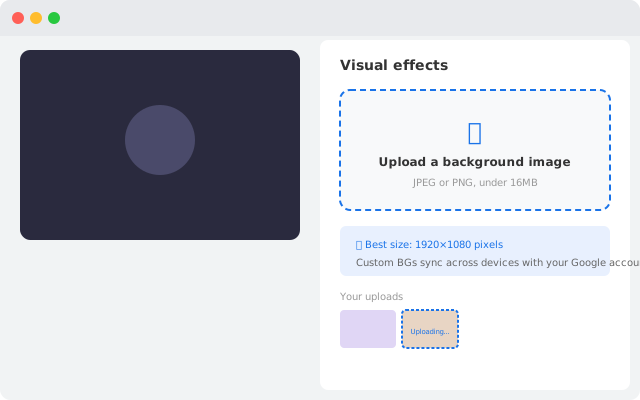
Tip: If the add button is missing, your Google Workspace admin may have limited backgrounds.
Apply it
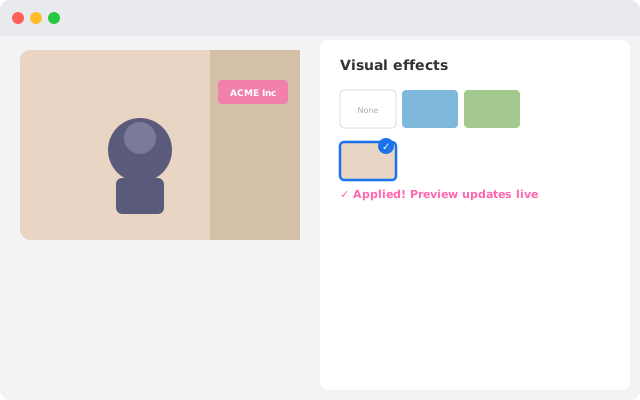
Click your image to apply it. The preview updates straight away.
Tip: Light from the front gives cleaner edges around your hair.
Join the meeting
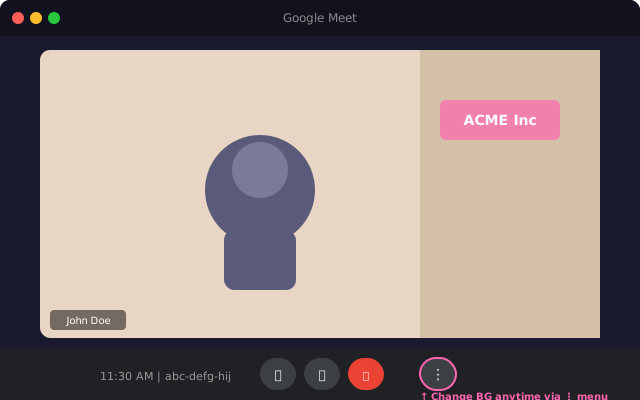
Click Join now. You can change the background at any time during the meeting with the same steps.
Tip: Close the effects panel when you're done to get your screen space back.
Browser compatibility
Windows and Mac
Recent Chrome, Edge and Firefox; Safari on Mac
Linux and ChromeOS
Recent Chrome; Firefox on Linux
Required setting
Graphics acceleration turned on in the browser
Work accounts
Your Workspace admin can limit backgrounds
Mobile (iPhone, iPad & Android)
The Google Meet app lets you change your background before and during meetings.
Open the Google Meet app
Save your backdrop image to your phone, then open Google Meet on your iPhone, iPad or Android device and start or join a meeting.
Tap Effects
Before joining, tap Effects on your video preview. During a meeting, tap your own video tile, then Effects.
Go to Backgrounds
Swipe to the backgrounds. You'll see blur and Google's own images.
Add your image
Tap + to add an image from your photos, if your version of the app offers it, or pick one of Google's backgrounds. Close the panel to go back to the meeting.
Mirroring & flipped text in Google Meet
Google Meet mirrors your self-view with no user toggle to change this. Other participants always see your background correctly. If your logo or text appears backwards in your preview, that's normal — it looks correct to everyone else on the call.
Your self-view
Mirrored (flipped)
What others see
Correct (not flipped)
Disable mirroring?
Not available
Tip: Even though your logo looks backwards in your preview, everyone else on the call sees it correctly. No need to flip your background image.
Troubleshooting
Backgrounds and effects is missing
Turn on graphics acceleration (in Chrome: Settings → System), restart the browser and update it. If it's still missing, try Chrome.
Background makes your video lag
Close other tabs and apps, or use slight blur on slow computers.
Your image won't upload
Use a JPG or PNG of 1920×1080 pixels, like the JPG you download from Wallogo, and try again.
Your admin has limited backgrounds
Google Workspace admins can turn off your own backgrounds. Ask your IT team to allow them in the Admin console.
Google Meet virtual background FAQ
What image size should I use for a Google Meet virtual background?▼
Which browsers support Google Meet backgrounds?▼
Why does my Google Meet background look flipped?▼
Why is the backgrounds option not showing in Google Meet?▼
Can I use a virtual background on Google Meet mobile?▼
How do I get a Google Meet background with my company logo?▼
Related platform guides
Want a Google Meet background with your logo on the wall?
Type your website. In about 8 seconds you get a photoreal office with your logo as a 3D sign. 5 free tries a day.