How to set a virtual background in Zoom
Add a custom background in Zoom on desktop or mobile in a couple of minutes. Covers Windows, Mac, iPhone and Android, with image specs, the mirroring fix and troubleshooting.
Make a Zoom backdrop with your logo →Zoom background image requirements
Recommended size
1920 × 1080 px
Aspect ratio
16:9
Formats
JPG, PNG
Max file size
15 MB
A Wallogo backdrop is a 1920×1080 JPG, so it fits without cropping. Zoom also takes MP4 or MOV video backgrounds.
Desktop (Windows & Mac)
You can set your Zoom background before joining a meeting (from Settings) or during a call.
Open Zoom settings
Open the Zoom Workplace desktop app and sign in. Click your profile picture in the top-right corner, then click Settings.
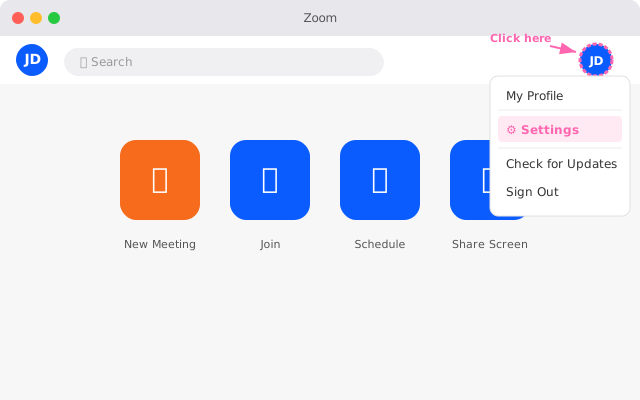
Tip: Update Zoom first. Older versions use different menu names.
Go to Video & effects
In the Settings window, click Video & effects in the left sidebar. This is where blur, backgrounds and filters live.
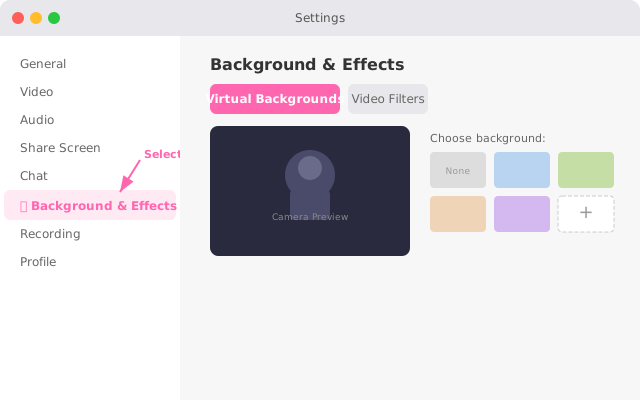
Tip: Older versions call this tab Background & effects.
Open Virtual backgrounds
Make sure the Virtual backgrounds tab is selected. You'll see blur, Zoom's own backgrounds and any images you've added before.
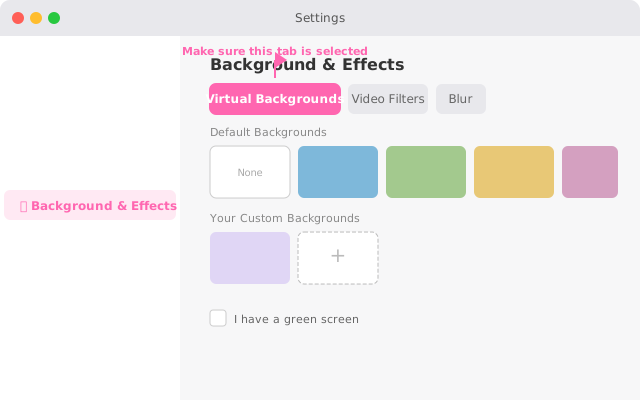
Tip: If the tab is missing, your account admin may have turned virtual backgrounds off in the Zoom web portal.
Add your background
Click the + icon next to the thumbnails, choose Add image, and pick your backdrop file (for a Wallogo backdrop, the 1920×1080 JPG you downloaded).
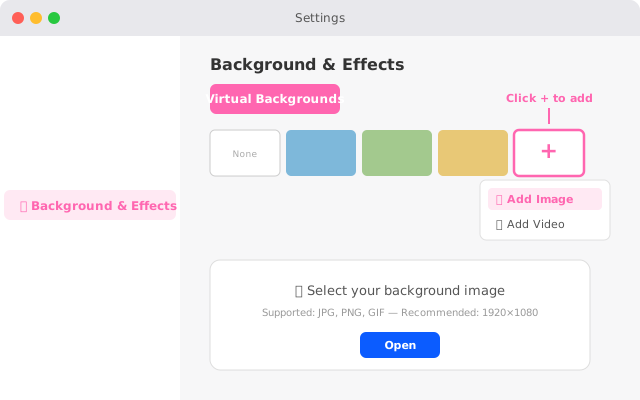
Tip: If Zoom asks to download the package for virtual background without a green screen, say yes.
Select it
Your image appears in the list. Click it to apply it. The preview shows how it looks with your camera.
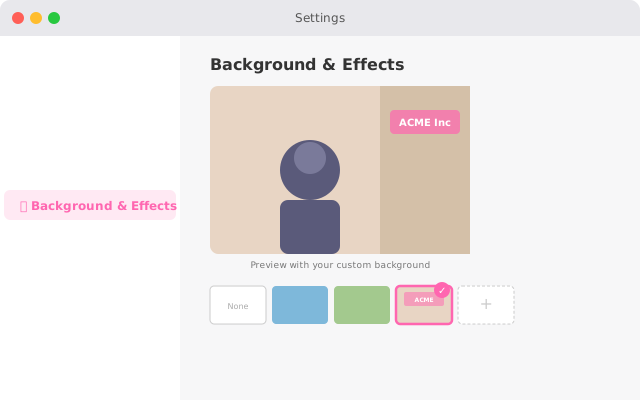
Tip: Light from the front helps Zoom separate you from the background.
Check it in a meeting
Start a test meeting to see it in action. Zoom keeps the background for your next meetings until you change it.
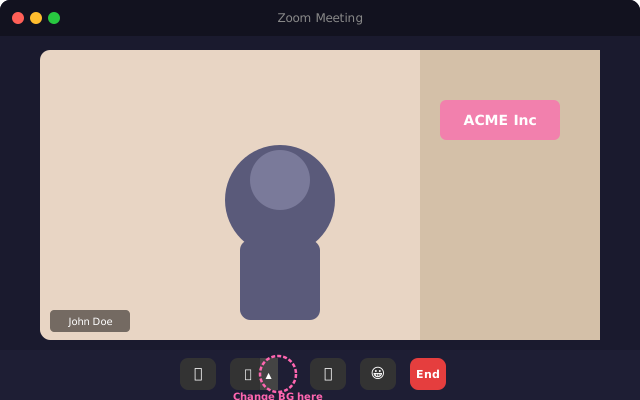
Tip: Your own preview may look mirrored. Other people see your logo the right way round.
Change background during a Zoom meeting
Already in a call? You can switch your background without leaving:
- Click the ^ arrow next to the Video button.
- Click Video & effect settings (in some versions, Choose virtual background).
- Pick an existing background, or click + to add a new one.
- Close the panel. Your background changes straight away.
Mobile (iPhone, iPad & Android)
On mobile, you set the background during a meeting. On iPhone, recent versions of the app also let you set it beforehand: profile picture → Settings → Video & effects → Background & effects.
Join or start a meeting
Open the Zoom app on your iPhone, iPad or Android device and join or start a meeting. Save your backdrop image to your phone first.
Tap More (···)
During the meeting, tap More in the meeting controls.
Open Virtual backgrounds
Tap Settings, then Virtual backgrounds. On some versions this is called Background & effects.
Add your image
Tap + and pick your backdrop from your photos. It applies straight away. Tap the close icon to go back to the meeting.
Mirroring & flipped text in Zoom
Zoom mirrors your self-view by default so logos and text appear backwards to you. Other participants always see your background correctly. You can disable mirroring in Settings → Video → uncheck 'Mirror my video'.
Your self-view
Mirrored (flipped)
What others see
Correct (not flipped)
Disable mirroring?
Yes
How to disable mirroring: Settings → Video → uncheck 'Mirror my video'
Do you need a green screen?
Short answer: no. Zoom removes your real background without a green screen on most modern computers.
- •Older hardware: On older computers, Zoom may only offer virtual backgrounds with a green screen.
- •Poor lighting: A green screen helps when your room has uneven or dim lighting.
- •Hair and fine edges: Green screens produce cleaner edges around hair and accessories.
To turn on green screen mode: Settings → Video & effects → Virtual backgrounds → check "I have a green screen".
Troubleshooting
Virtual background option is greyed out or missing
Your computer may not meet Zoom's requirements. Update Zoom and your graphics drivers, or try I have a green screen. Some admins turn this feature off.
Background flickers or has a halo around you
Improve your light: face a window or use a lamp in front of you. Sit in front of a plain wall, close heavy apps, and avoid clothes in the same colour as your background.
Background doesn't show in a meeting
The host or your admin may have turned virtual backgrounds off. In the Zoom web app, use the ^ arrow next to Start Video → Choose Background; if you can't add images there, use the desktop app.
Image is stretched or cropped
Your image isn't 16:9. Use a 1920×1080 image, like the JPG you download from Wallogo.
Zoom virtual background FAQ
What image size should I use for a Zoom virtual background?▼
Do I need a green screen for Zoom virtual backgrounds?▼
Why does my Zoom background look mirrored or flipped?▼
Why is the virtual background option missing in Zoom?▼
Can I use a virtual background on Zoom mobile?▼
How do I get a Zoom background with my company logo?▼
Related platform guides
Want a Zoom background with your logo on the wall?
Type your website. In about 8 seconds you get a photoreal office with your logo as a 3D sign. 5 free tries a day.