How to set a virtual background in Microsoft Teams
Add a custom background in Teams on desktop or mobile in a couple of minutes. Covers setting it before you join, changing it during a meeting, and mirroring.
Make a Teams backdrop with your logo →Teams background image requirements
Recommended size
1920 × 1080 px
Aspect ratio
16:9
Formats
JPG, PNG, BMP
From Wallogo
1920 × 1080 JPG
A Wallogo backdrop fits without cropping. Your IT admin decides whether custom backgrounds are allowed.
Desktop (Windows & Mac)
Set your background from the pre-join screen or during an active call.
Open the meeting
Open Microsoft Teams and click Join on the meeting. Before you join, you see a preview of your camera: this is the easiest place to set the background, before anyone sees you.
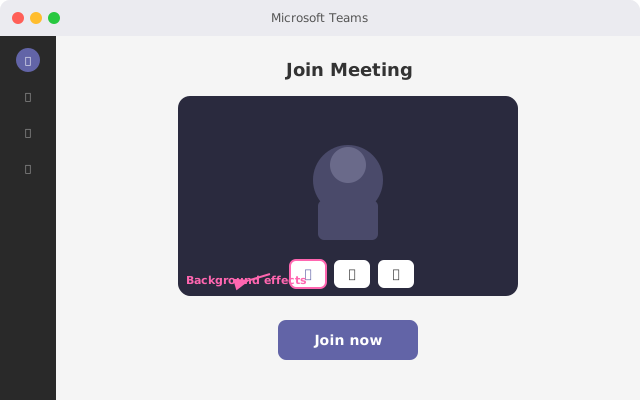
Tip: These steps are for the current Teams app on Windows and Mac. Menu names can differ slightly between versions.
Open background effects
Before joining: under your video preview, select Background filters (in some versions, Effects and avatars). During a meeting: select More (···) → Video effects and settings, or the arrow next to Camera.
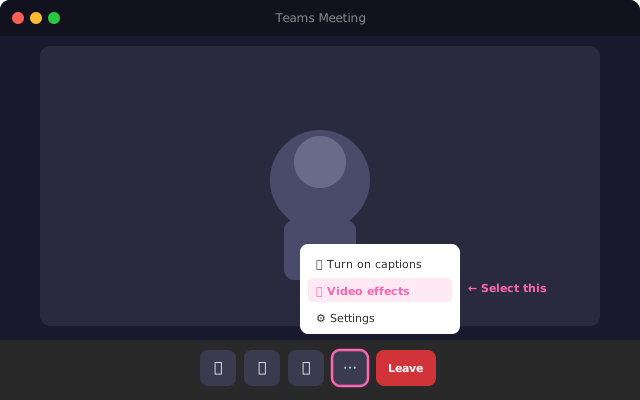
Tip: Teams keeps your chosen background for your next meetings and calls.
Browse the backgrounds
A panel opens with blur, Microsoft's own images and any backgrounds you've added before.

Tip: Blur is a quick fallback, but it hides the room without saying anything about you.
Add your own image
Select Add new and pick your backdrop file (for a Wallogo backdrop, the 1920×1080 JPG you downloaded). Teams takes JPG, PNG and BMP images.
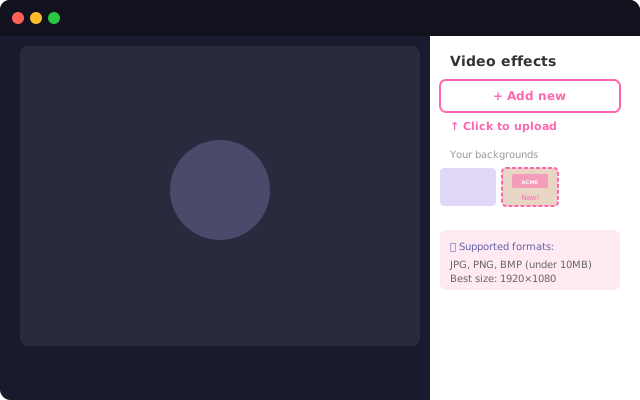
Tip: If you don't see Add new, your IT admin may have turned off custom backgrounds.
Apply it
Select your image to preview it, then select Apply (or Apply and turn on video) and join the meeting.

Tip: Check the preview: good light from the front gives cleaner edges around your hair.
Change it during a meeting
To switch backgrounds later, select More (···) → Video effects and settings, pick another image and apply it.
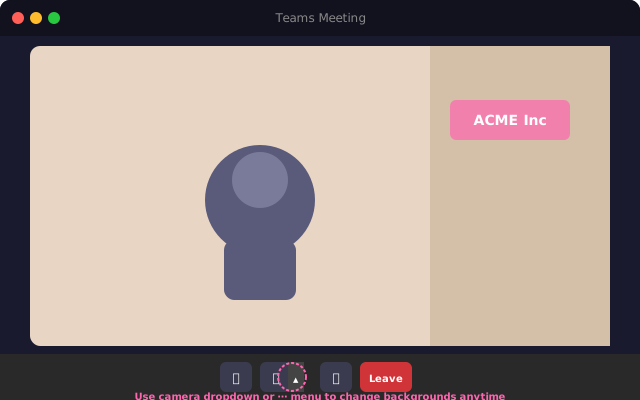
Tip: You don't need to turn your camera off to change the background.
Mobile (iPhone, iPad & Android)
In the Teams mobile app, you set the background during a meeting.
Open the Teams app
Save your backdrop image to your phone, then open Microsoft Teams on your iPhone, iPad or Android device and join a meeting.
Tap More (···)
During the meeting, tap More in the meeting controls.
Select Background effects
Tap Background effects. You'll see blur, Microsoft's images and your own uploads.
Add your image
Tap + to add an image from your photos, select it and tap Done.
Mirroring & flipped text in Microsoft Teams
Teams mirrors your self-view with no option to disable it. Don't worry — other participants always see your background, logo, and text the correct way around. The mirroring only affects what you see on your own screen.
Your self-view
Mirrored (flipped)
What others see
Correct (not flipped)
Disable mirroring?
Not available
Tip: Even though your logo looks backwards in your preview, everyone else on the call sees it correctly. No need to flip your background image.
Troubleshooting
Background effects or Add new is missing
Your IT admin may have turned custom backgrounds off in a Teams policy, or your computer doesn't meet the requirements. Update Teams and check with IT.
Your image disappears after a restart
Update Teams and add the image again with Add new. In Teams on the web, custom images may not be kept between sessions; the desktop app is more reliable.
Edges flicker or look rough
Use a 1920×1080 image and even light from the front. Avoid clothes in the same colour as your background, and close heavy apps.
Background is stretched or cropped
Your image isn't 16:9. Use a 1920×1080 image, like the JPG you download from Wallogo.
Teams virtual background FAQ
What image size should I use for a Teams virtual background?▼
Why does my Teams background look mirrored?▼
Why is the background effects option missing in Teams?▼
Can I use virtual backgrounds in Teams on mobile?▼
How do I get a Teams background with my company logo?▼
Related platform guides
Want a Teams background with your logo on the wall?
Type your website. In about 8 seconds you get a photoreal office with your logo as a 3D sign. 5 free tries a day.