How to add a virtual background in Webex
Add your own background in the Webex App on Windows and Mac, and on Webex Desk devices.
Make a Webex backdrop with your logo →Webex background image requirements
Recommended size
1920 × 1080 px
Aspect ratio
16:9
Formats
JPG, PNG, GIF
From Wallogo
1920 × 1080 JPG
1920×1080 is also the largest size Webex takes, so a Wallogo backdrop fits as it is. Desk Series devices take JPEG and PNG.
Webex App on Windows and Mac
Open Webex settings
Open the Webex App on Windows or Mac. Click your profile picture and choose Settings (on Mac, Webex → Settings).
Tip: Setting it up before a meeting is easiest. It then applies to all your Webex calls and meetings.
Go to Video
In Settings, click Video in the sidebar, then find the background options.
Tip: You can see your camera preview here without being in a meeting.
Find the backgrounds
You'll see blur, Webex's own images and a + button for your own images.
Tip: Blur may not fully hide what's behind you. A full background image does.
Add your image
Click + and pick your backdrop file (for a Wallogo backdrop, the 1920×1080 JPG you downloaded). Webex takes JPG, PNG and GIF images, and MP4 or MOV videos.
Tip: Webex recommends at least 480×360 and at most 1920×1080 pixels. You can add up to 10 of your own images.
Select it
Click your image to apply it. The preview shows how it looks with your camera.
Tip: Light from the front gives cleaner edges around your hair.
Change it in a meeting
During a meeting, open the video options next to the camera button, choose Change virtual background, pick an image and save.
Tip: Webex remembers your background for your next meetings.
Webex Desk Series devices
Change or upload custom backgrounds on Webex Desk, Desk Pro, Desk Mini, and Board devices. Not supported on DX70 or DX80.
Open the control panel
Tap the control button or swipe from the right side of the screen. In the control panel that opens, tap 'Background'.
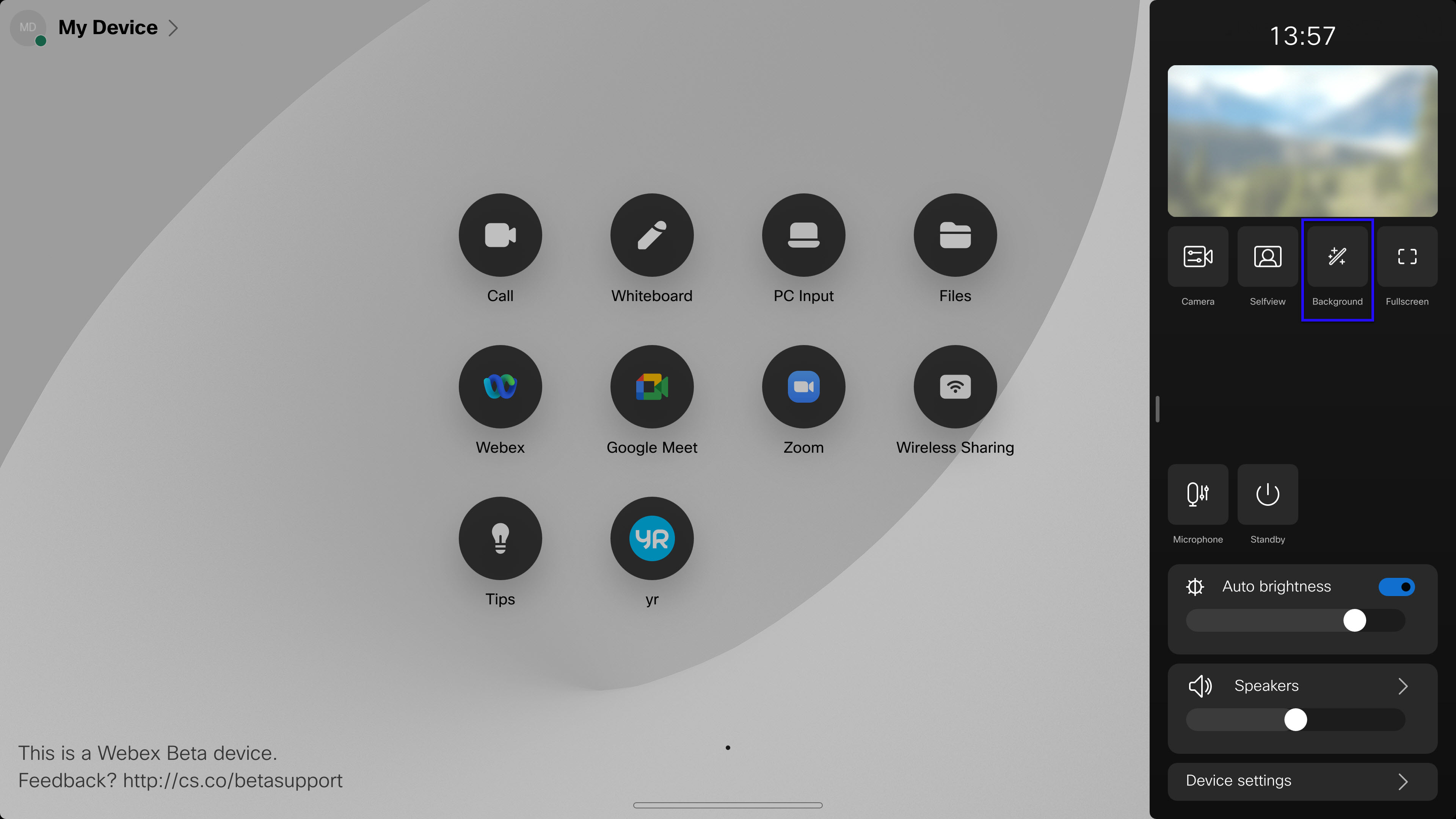
Tip: You can change your background whether you're in a call or not.
Choose a background
You'll see all available backgrounds: no background, blur, your connected computer screen, predefined images, and any custom backgrounds uploaded by your admin.
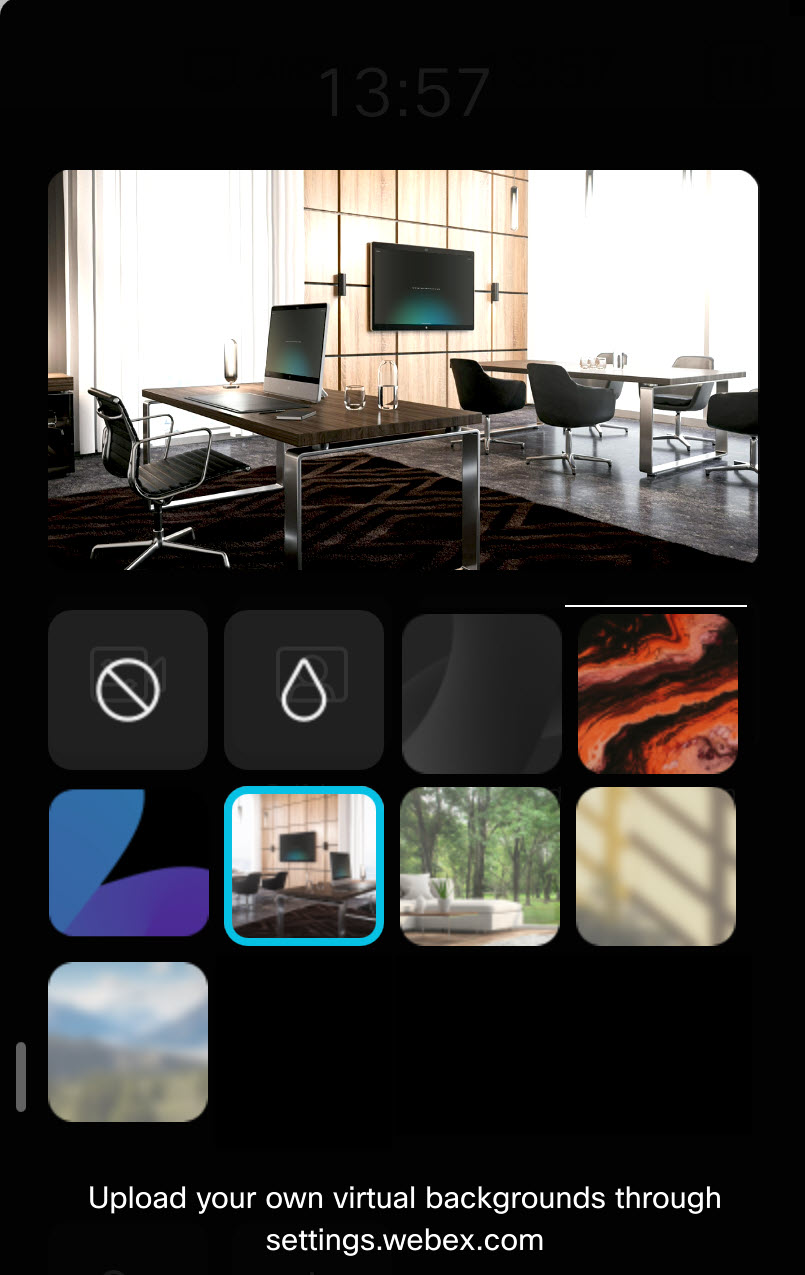
Tip: Your computer screen can be used as a background when your PC is connected to the Desk device — you'll appear in front of whatever is on your screen.
Change it during a call
During a meeting, tap the background effects icon (sparkle/wand) in the self-view controls to change your virtual background without leaving the call.
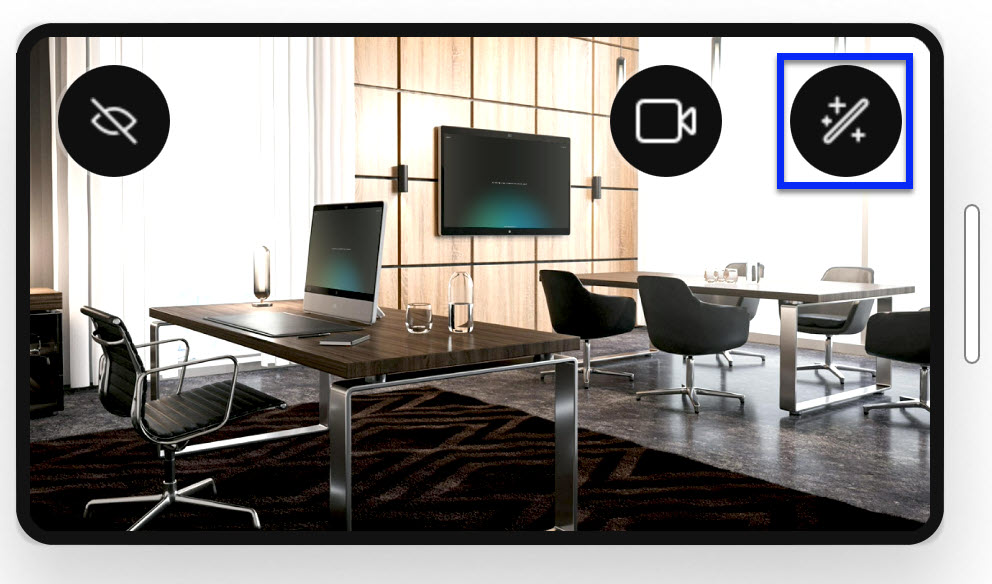
Tip: Tap anywhere else on the screen to close the background picker panel.
Upload your own backgrounds (personal mode)
If your Desk device is in personal mode, go to settings.webex.com and log in with your Webex credentials. Navigate to Settings → Devices → select your device → Customization → Virtual backgrounds → Upload.
Tip: You can upload up to 3 custom backgrounds. Supported formats: JPEG, PNG. Drag and drop or click 'Choose a file' to upload. To remove an image, hover over it and click Delete.
Mirroring & flipped text in Webex
Webex mirrors your self-view by default. You can disable this via your profile picture → Settings → Video → uncheck 'Mirror my self view'. Other participants always see your background correctly regardless of this setting.
Your self-view
Mirrored (flipped)
What others see
Correct (not flipped)
Disable mirroring?
Yes
How to disable mirroring: Click your profile picture → Settings → Video → uncheck 'Mirror my self view'
Troubleshooting & FAQ
Virtual background option is missing
On desktop, update Webex to the latest version. On Desk Series, virtual backgrounds aren't supported on DX70/DX80. Your admin may also have disabled the feature.
Background looks stretched
Use a 16:9 image of 1920×1080 pixels, like the JPG you download from Wallogo. Other shapes may be stretched or cropped.
Video lags during calls
Virtual backgrounds use processing power. Close apps you don't need during the call.
Blur doesn't fully hide my room
Blur can leave things behind you readable. Use a full background image instead.
What image formats does Webex support for virtual backgrounds?▼
Can I use virtual backgrounds in Webex on mobile?▼
Does Webex mirror my virtual background?▼
How many custom backgrounds can I upload on a Desk Series device?▼
Can I use my computer screen as a virtual background?▼
What if the virtual background option is missing?▼
Related platform guides
Want a Webex background with your logo on the wall?
Type your website. In about 8 seconds you get a photoreal office with your logo as a 3D sign. 5 free tries a day.